General Settings
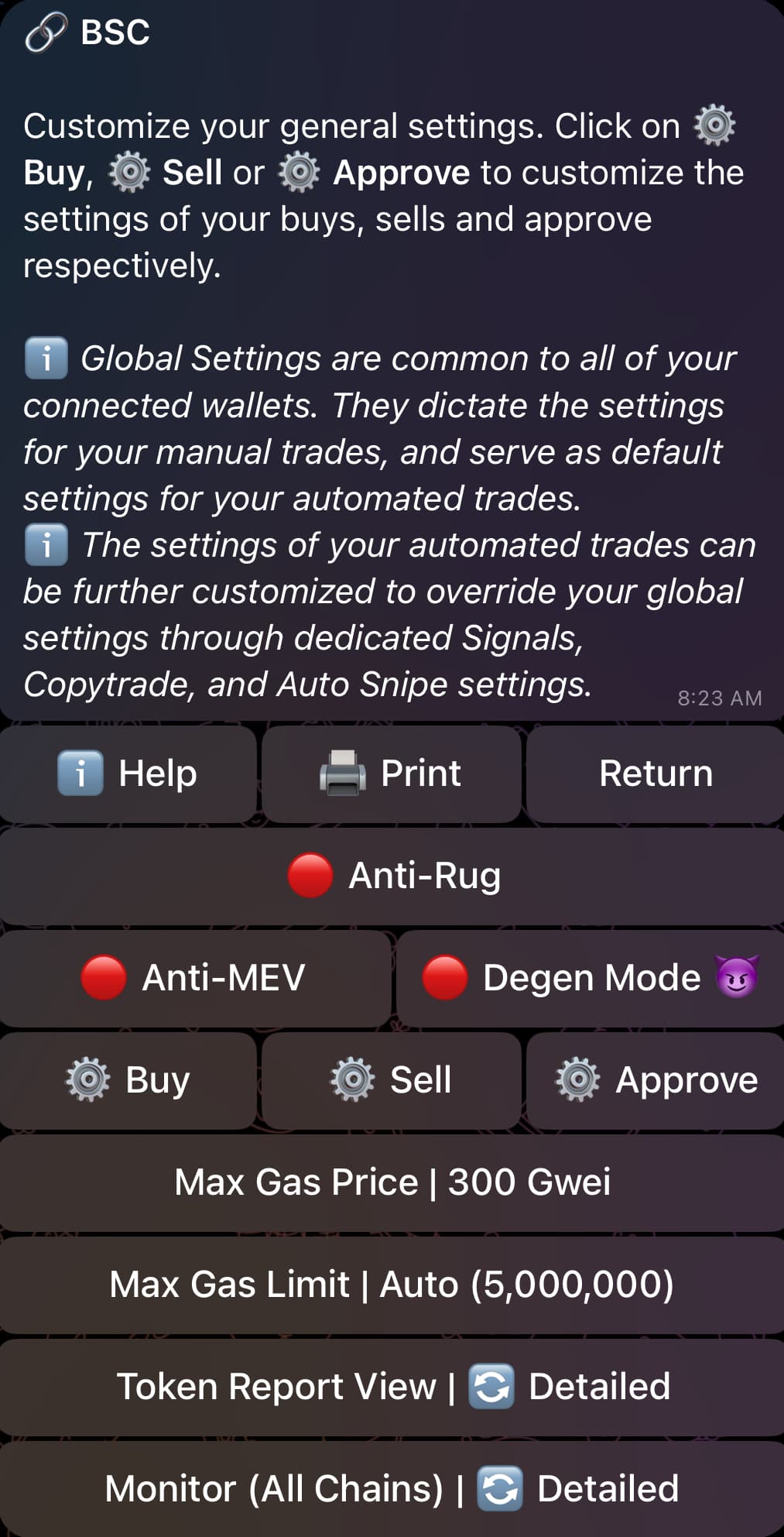
🟢 | 🔴 Anti-MEV
Exclusive to Ethereum and Solana
- Ethereum: For Ethereum, Anti-MEV is force-enabled and cannot be disabled. In this case, the bot will route your transactions through a private relay, and your transactions will not be broadcast on mempool. This technique will guard against MEV/sandwich bots and avoid pesky copytraders.
- Solana: If enabled, the bot will route your transaction through private relays (Jito, Temporal or NextBlock). This technique will guard against MEV/sandwich bots.
🟢 | 🔴 Degen Mode 😈
The bot normally blocks automated buys (auto-buys) of a token if it detects honeypots, blacklist risks, or unhealthy liquidity. However, some users have requested the removal of these “training wheels” to allow them to go full degen. This is what Degen Mode aims to accomplish. When enabled 🟢, the bot will still notify you if the aforementioned risks are detected, but it will NO LONGER block auto-buy in those events. Only enable this if you absolutely know what you’re doing and are willing to handle the risks involved.
Max Gas Price
Available on every EVM-compatible chain
Choose the maximum gas price you’re willing to pay for a copytrade transaction. It compares against the gas price needed to frontrun/match copytrades. If this requires a higher gas price than the Max Gas Price you set, the bot will block the transaction.
Please note that the Max Gas Price will not interfere with manual transactions, Signals auto-buys, or snipes.
Max Gas Limit
Available on every EVM-compatible chain
Choose the max gas limit you allow the bot to use. You can leave it on Auto as the bot already selects an optimal gas limit for the contracts you’re interacting with, or you can set a specific amount to block tokens with high gas usage. If a transaction requires more gas than the set max gas limit, the transaction will be immediately rejected. This setting impacts both manual and automated transactions.
Similarly, for TRON, there's Max Energy Limit which sets the maximum Energy a manual or automated transaction can use.
Token Report View
This setting is customizable per chain and it sets the default view for the Token Report. A Token Report is a summary of the most important token info and metrics, and you can get it by simply pasting the token contract address in your DMs with the bot. There are two possible views for the Token Report: 🔄 Brief and 🔄 Detailed. As the name suggests, the 🔄 Detailed view provides more metrics and details compared to the 🔄 Brief view.
Monitor (All Chains)
This setting is common across all chains, and it sets the default view for the Trade Monitor. A Trade Monitor is a tool that can be used to monitor your positions in real time. There are three possible views for the Trade Monitor: 🔄 Brief, 🔄 Detailed and 🔄 Extended. As the name suggests, the 🔄 Detailed view provides additional details on your position compared to the 🔄 Brief view. The 🔄 Extended view is similar to 🔄 Detailed view with the only exception that the summary of positions in the Trade Monitor is displayed in a non-collapsible quote. For the 🔄 Brief and 🔄 Detailed views, this summary is normally displayed in a collapsible-quote that can be extended and minimized at will.