↔️ Bridge
Bridge or swap tokens across chains — either the fast, deBridge-powered route, or the private, Houdini-powered route.
Maestro ships with two separate cross-chain flows, each optimised for a different priority:
/bridge— powered by deBridge. The default, fast option for moving tokens between chains. Use this for everyday bridging./private— powered by Houdini Swap. The privacy-focused option that unlinks the sending and receiving addresses. Use this when you want transactional anonymity.
Both flows are also accessible from the Main Menu: tap ↔️ Bridge for the deBridge flow, or send the /private command directly for the Houdini flow.
/bridge — Fast Cross-Chain Swaps (deBridge)
Send /bridge in your DM with the bot, or tap ↔️ Bridge in the Main Menu, to open the deBridge panel. From here, you pick the sending chain and token, the receiving chain and token, the amount, and the receiving wallet. The bot returns a quote with the expected output, and clicking ⇔️ Bridge initiates the transfer.
deBridge routes the order through its own validator network, so your funds stop briefly on the deBridge side before being delivered on the destination chain. This is the route to reach for when speed matters more than unlinkability.
The receiving wallet can be any of your connected wallets on the destination chain, or an external address that you paste manually. If Maestro supports the destination chain and you have wallets connected there, they will show up in the selection list automatically.
/private — Private Cross-Chain Swaps (Houdini)
Send /private in your DM with the bot to open the Houdini Swap panel. Unlike /bridge, Houdini orders route through a one-time deposit address, so the originating wallet and the receiving wallet cannot be linked on-chain by an outside observer.
In what follows, we provide a step-by-step guide on how to privately swap (same chain, different tokens), send (same chain, same token) or bridge (different chains) through the bot.
Step 1: Select Chain and Token
The first step is to select the chain and token both on the sending and receiving ends. For example, the image above indicates that we will be sending ETH from Ethereum and, in return, we would like to receive BTC on Bitcoin. To change this default configuration, simply click on "🔗 ETH" and the bot will display a list of chains from which you need to select the target chain that you want to bridge, send or swap from, as shown below:
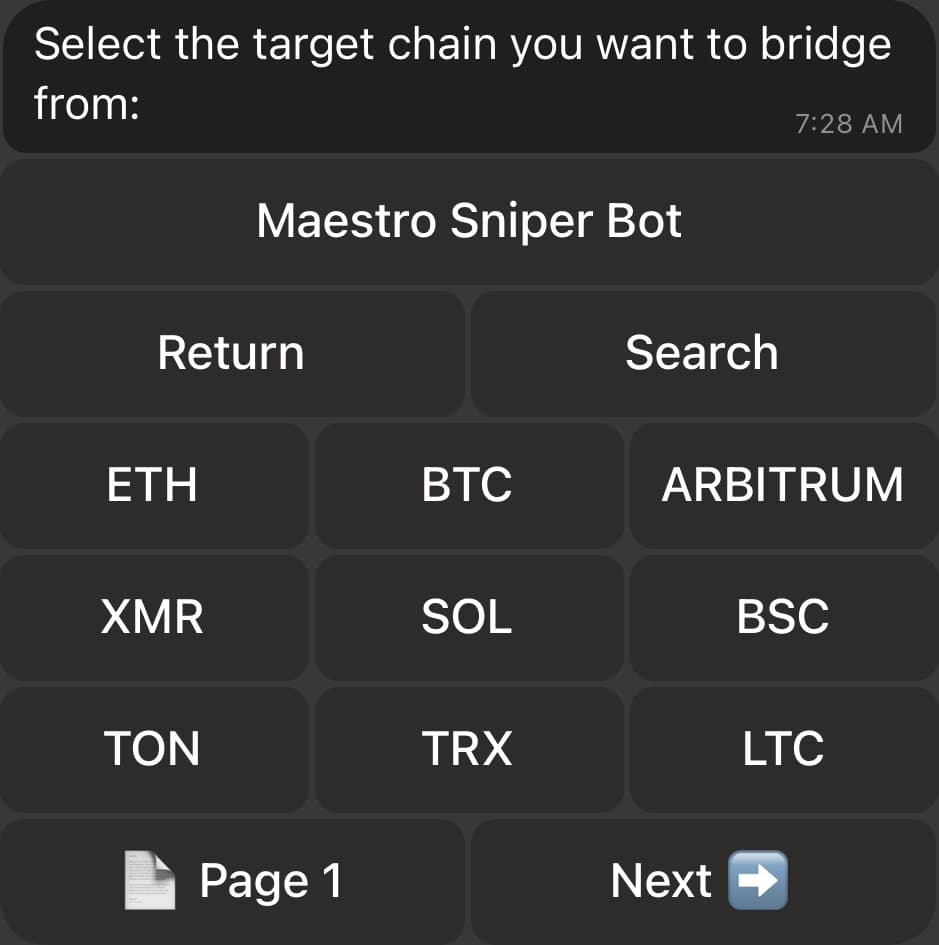
You can cycle through the pages and select the chain of interest, or use the Search button to look for it. Once the chain is set, the bot will display the list of tokens that are supported for the selected chain, and will prompt you to select one, as shown below. This will represent the token that you would like to bridge, send or swap on the selected chain.
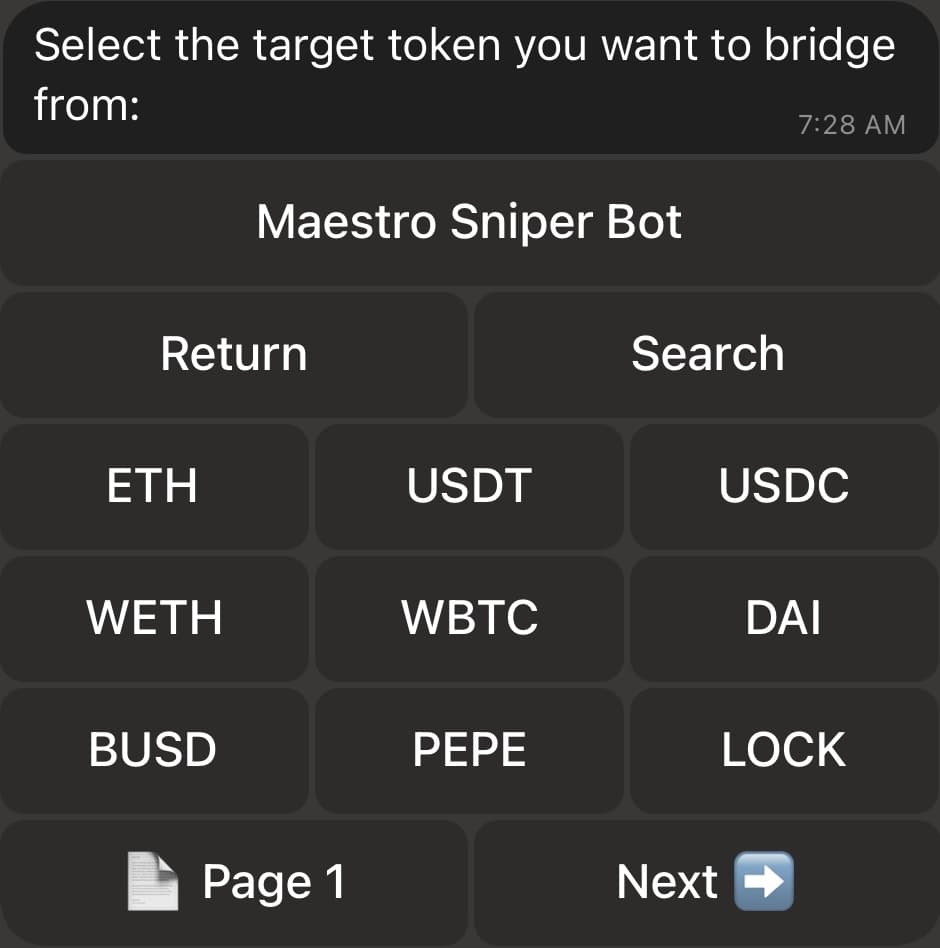
Once the token is selected, you will be redirected to the Bridge Menu with your selection of chain and token reflected on the sending end. The same exact process can be followed to select the chain and token of the receiving end (initiated by clicking on "🔗 BTC" in the Bridge Menu).
The middle button with the double arrow can be used to switch the selected chain and token for the sending and receiving ends.
Step 2: Select Privacy and Rate Modes
The following step is to specify the Privacy and Rate modes of your order:
- Privacy Mode: If you click on "👁🗨 Semi-Private", it will turn to "👁🗨 Private".
- Private: Provides transactional anonymity. In other terms, you will have exclusive knowledge of the originating wallet address and the recipient address since you select both, but this information will not be identifiable by the receiver nor by external parties. Note that it is required to select Private Mode if you're sending AND receiving the same token on the same chain.
- Semi-Private: Provides a practical blend of privacy and efficiency by offering an enhanced privacy when compared to regular transactions, but they are not completely anonymous and can potentially be traced back to the originating wallet address with some technical expertise. However, Semi-Private transactions are about 10 times faster than Private ones and cost approximately 50% less.
- Rate Mode: If you click on "📉 Variable Rate", it will turn to "📌 Fixed Rate".
- Variable Rate: Variable rates adjust with the market and are recommended for most transactions.
- Fixed Rates: Fixed rates are ideal for exact payment amounts like invoices, and are higher cost.
Step 3: Get Quote
Now that your order details are set, click on 🧾 Get Quote, and the bot will prompt you to insert the amount of tokens that you want to send, swap or bridge. Please note that there is a minimum acceptable amount that will be displayed to you if your inserted amount was too low. With the amount set, the bot will display a quotation that shows how many tokens you'll be approximately receiving in return for the amount that you're sending. An example quote is show below:
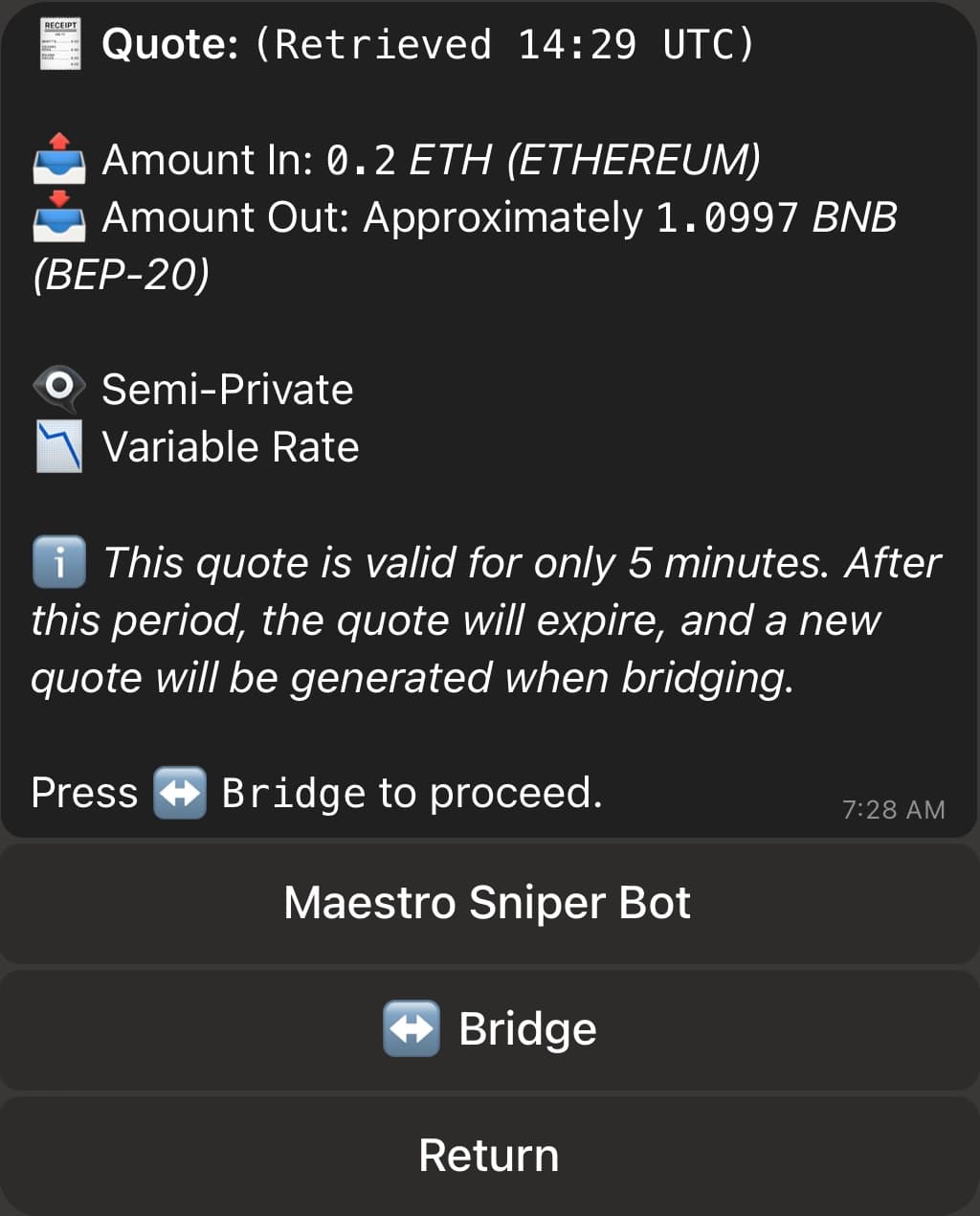
If you'd like to change anything in your order, click on Return to get back to the Bridge Menu. Otherwise, you can click on "⇔ Bridge" to effectively initiate the process. Please note that a quote will only be valid for 5 minutes. After this time, clicking on "⇔ Bridge" will automatically refresh the quote.
Step 4: Specify the Receiving Wallet
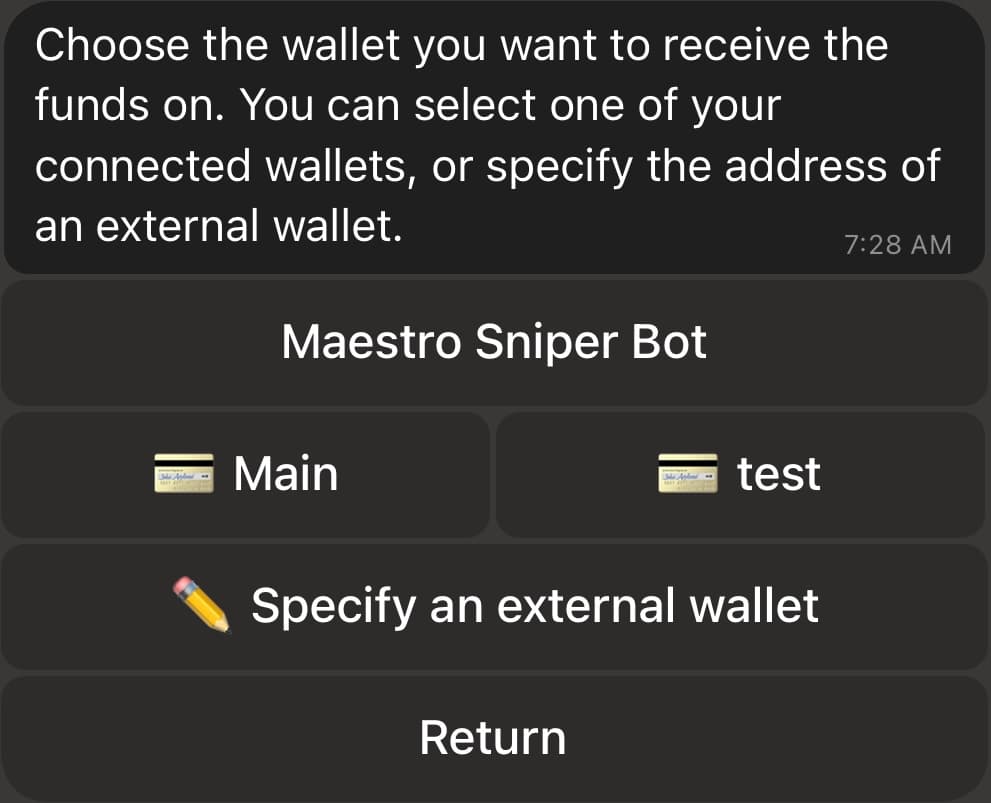
After clicking on "⇔ Bridge" for a valid quote, the bot will ask you for the address of the wallet that will be receiving the tokens. In case the receiving chain is one that Maestro supports and you have wallets connected on it, the bot will also display these wallets for you to select if you wish to send, swap or bridge to one of your connected wallets, as shown below:
Step 5: Initiate the Transfer
Now that you've selected the receiving wallet, the bot will create your Houdini order. An example is shown in the image below. The Houdini ID of your order will also be shown towards the end of the message.
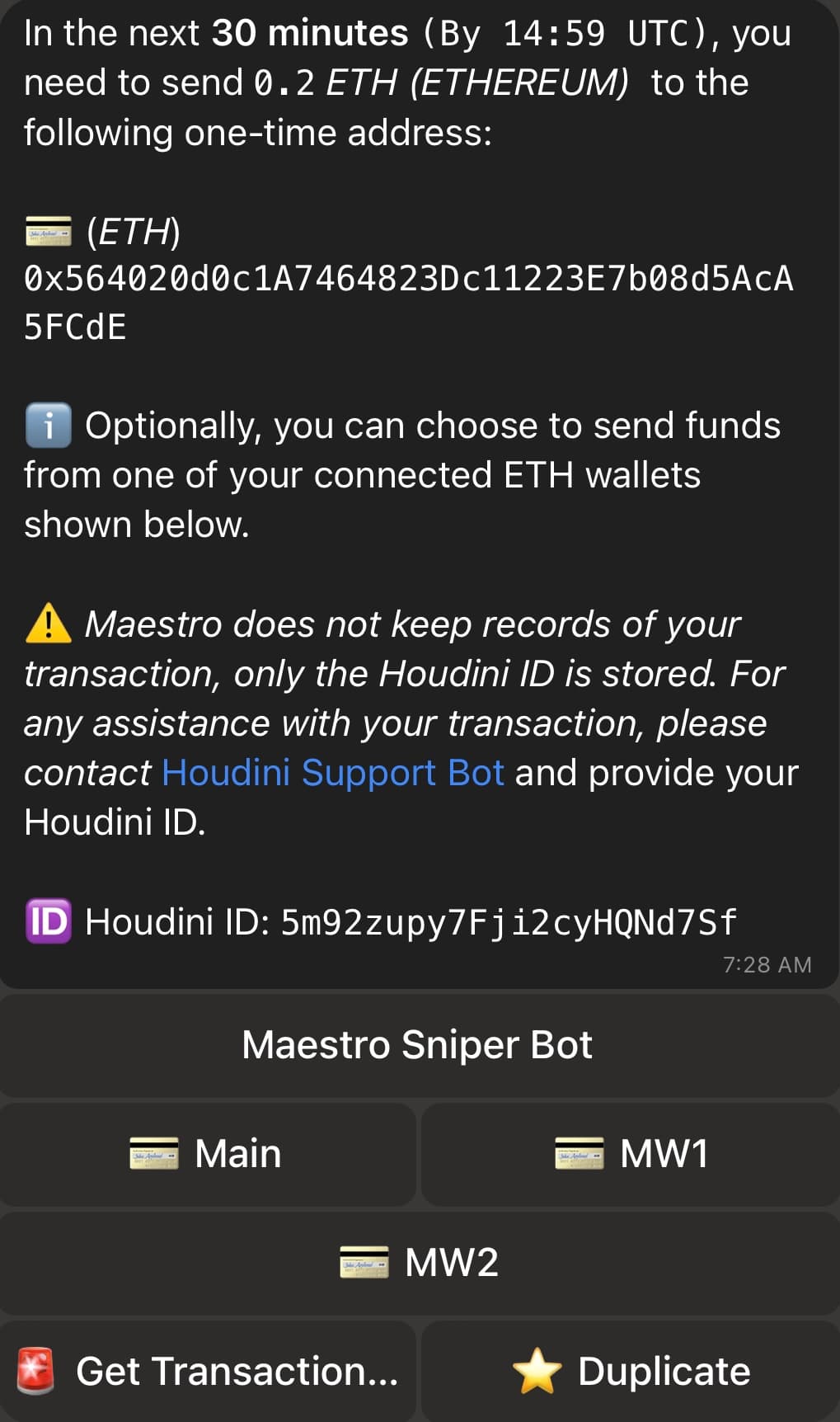
The order will include a one-time address to which you need to send the tokens in the coming 30 minutes. You can send funds to the one-time address from any wallet. If the chain that you're sending, swapping or bridging from is one that Maestro supports and you have wallets connected on it, the bot will also display these wallets for you to select if you wish to send, swap or bridge the tokens directly from one of your connected wallets, as shown in the image above. For example, if we click on either on "Main", "MW1" or "MW2", the bot will automatically initiate a transfer of 0.2 ETH from the selected wallet to the provided one-time address. Once your funds are received on the one-time address, the receiver wallet that you've selected will receive the equivalent funds after a while (the actual time will mostly depend on the privacy mode of your order and the congestion on the concerned chains).
If you click on "🚨 Get Transaction Status", the bot will redirect you to a menu that shows the summary and the status of your order.
The "⭐️ Duplicate" option is a ⭐️ Premium-only feature which allows you to duplicate the exact same order with the same settings and receiving wallet. Clicking on it will spawn another menu similar to the one shown in image above, but with a different one-time address and Houdini ID. This is particularly useful if you wish to send, swap or bridge tokens with a worth exceeding 50,000$ as this is the maximum allowed limit per order.
Finally, please note that Maestro does not keep records of your transaction, only the Houdini ID is stored. If you face any issues with your order beyond Step 5, please contact Houdini Support Bot and provide your Houdini ID for assistance.