# Buy Settings
Selecting the ⚙️ _Buy_ button reveals the following menu:
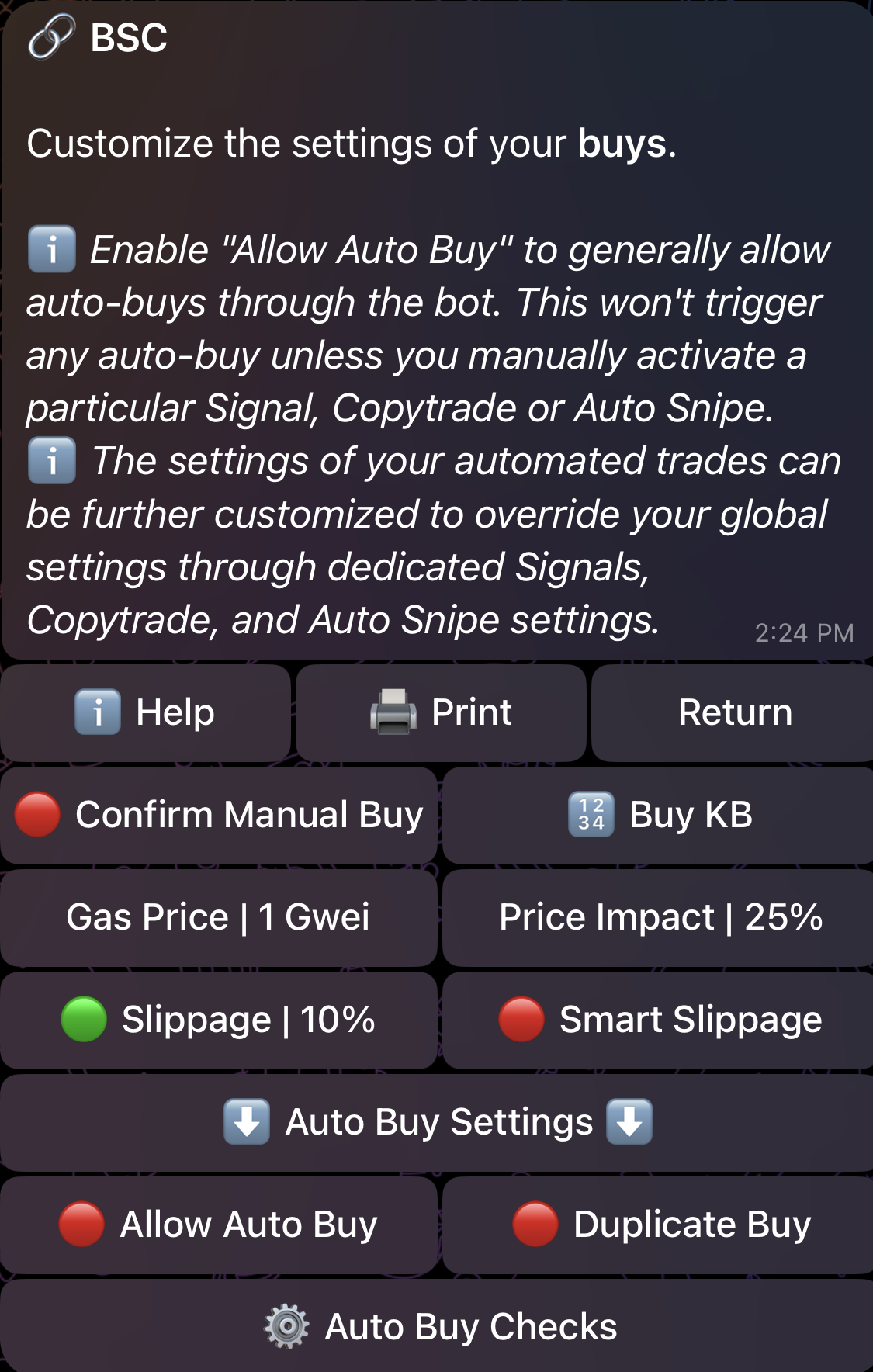
The _Buy_ menu offers a multitude of different configuration options that give you complete control over your purchase preferences. We explain these options below:
### 🟢 | 🔴 Confirm Manual Buy
If enabled 🟢, any buy buttons you press will require an additional confirmation. This can protect you from accidentally clicking buy buttons. **This only impacts manual buys and does NOT interfere with **_**Auto Buy**_**.**
### 🔢 Buy KB
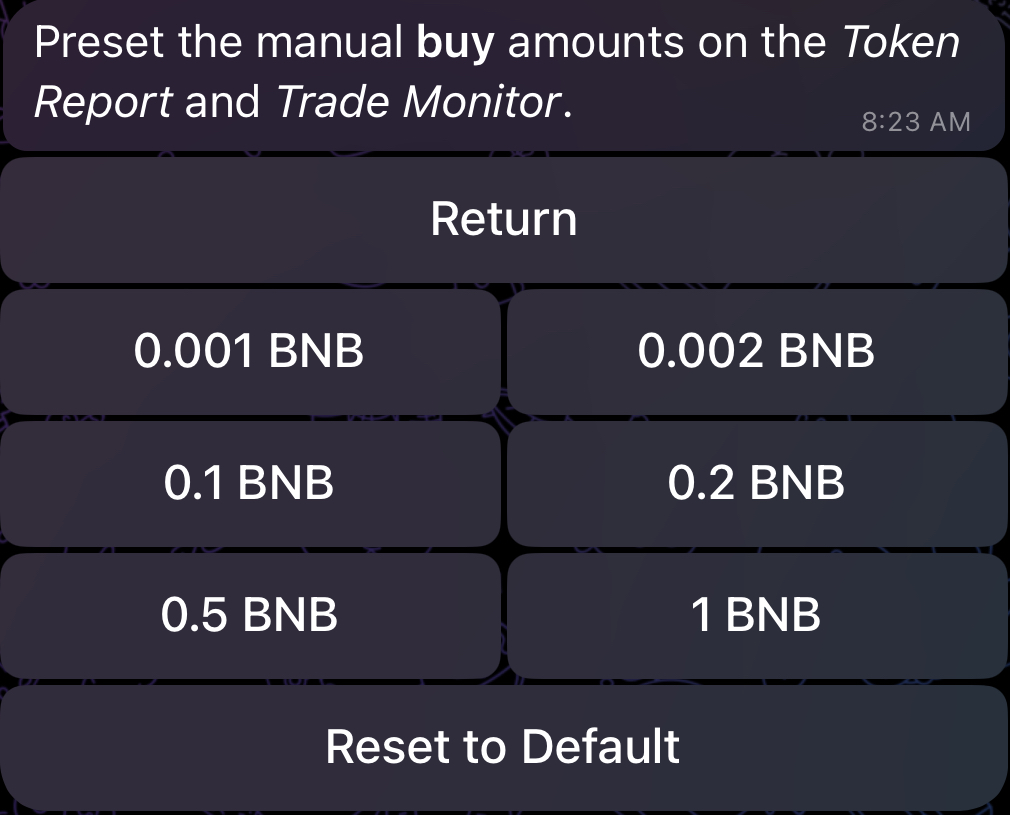
Assign customized values to the buy keyboard as shown below. You also have the option to reset the values to the default ones.
### **Gas Price**
_Exclusive to BSC_
Choose the preferred gas price you would like to use. Your gas price determines your transactions’ priority on the blockchain. The higher the price, the quicker the transactions will go through, but you’ll have to pay higher gas fees.
On all other EVM-compatible chains, you'll encounter _**Gas Delta**_ instead of _**Gas Price**_:
### **Gas Delta**
_Available on Base, Ethereum, Monad, Sonic, Avalanche, Hyper EVM and Solana_
For **EIP-1559 EVM chains** (Base, Ethereum, Monad, Sonic, Avalanche, Hyper EVM), _Gas Delta_ will act as the max priority gwei on a Type-2 transaction. Essentially, the bot will automatically adjust to the current gas average, and then add the chosen _Gas Delta_ on top of it. Example:
* Gas average is 10 gwei
* Set _Gas Delta_ to 3 gwei for example
* Your transaction’s gas price will now be 10 (base) + 3 (priority) gwei
Higher deltas will yield higher transaction speeds at the cost of higher gas fees.
On Arbitrum, _Gas Price/Delta_ is completely irrelevant since the chain operates on a First-Come-First-Serve basis. More details on the subject can be found [here](https://research.arbitrum.io/t/transaction-ordering-policy/127).
On **Solana**, there is a minimum fixed transaction fee of 0.000005 SOL, but you have the ability to pay an additional fee through _Gas Delta_ to boost your transaction and achieve quicker execution times. For example, if you set your _Gas Delta_ to 0.01 SOL, you will end up paying 0.010005 SOL as transaction fees.
On **TON**, the bot will always send 0.2 TON as a reserve for transaction fees, and the remaining amount will be credited back to your wallet. Similarly, the transaction fee for TRON cannot be preset.
### Price Impact Alert
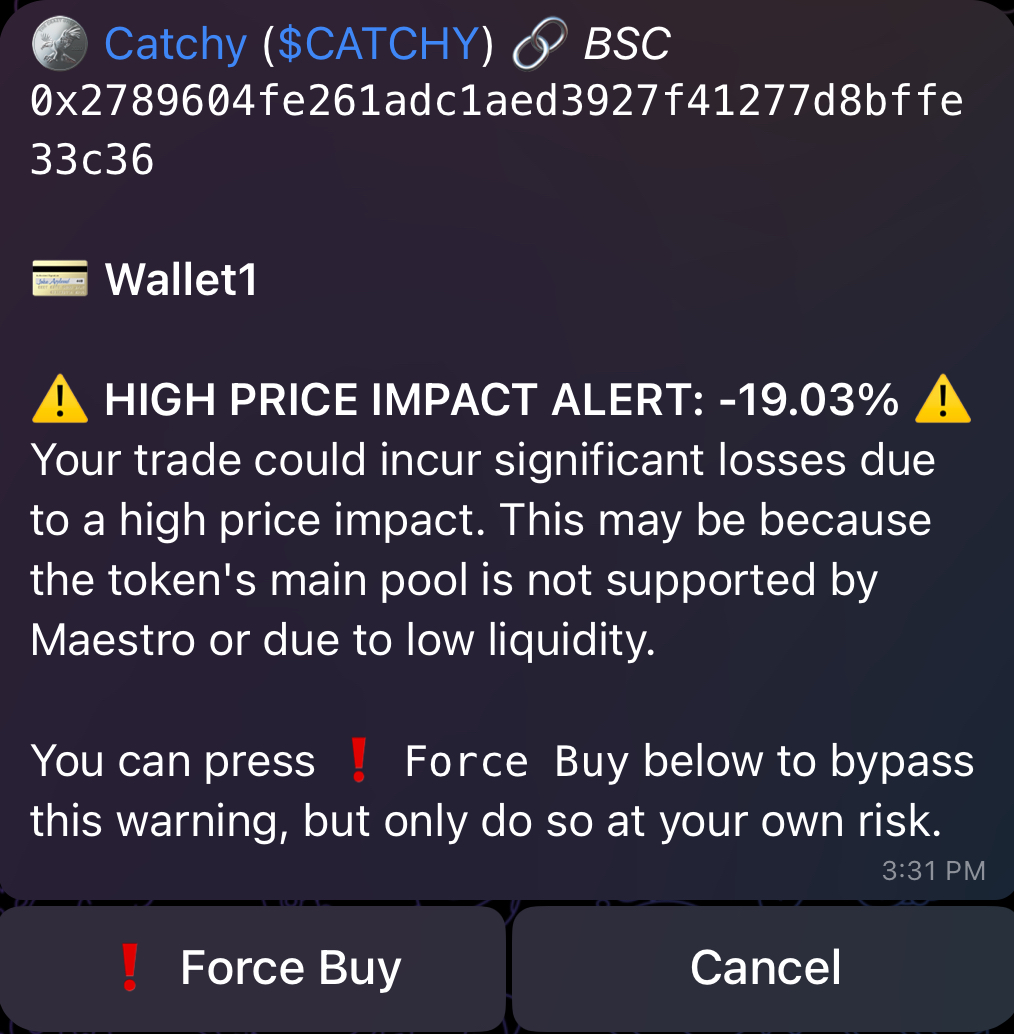
As an additional layer of protection, the bot will automatically display an alert for **manual and automated buys** when the estimated price impact of the trade is beyond the value of _**Price Impact Alert**_. This alert can be bypassed by manually forcing the trade through, as shown in the figure below. By default, _**Price Impact Alert**_ is set to 25% for buys but you can tune the value to effectively control the threshold at which the alert will be displayed.
### 🟢 | 🔴 Slippage
Choose the slippage tolerance for your buys. In some chains, using extremely high slippage values is dangerous since you can get frontrun by MEV bots, so please use a suitable value, or utilize _Smart Slippage_.
### 🟢 | 🔴 Smart Slippage
_Available on ETH, BSC, Base, Avalanche and Arbitrum_
This allows slippage to automatically adjust based on the token’s taxes and the price impact of your trade. This is not suitable for volatile situations like launches and snipes. We recommend you pair it with high _Gas Price/Delta_. **Keep in mind that **_**Smart Slippage**_** overrides any custom slippage values you might have selected earlier.** In other terms, when _Smart Slippage_ is enabled 🟢, _Slippage_ is disabled 🔴 and vice versa.
**In most cases, manual buys will rely on the **_**Gas Price/Delta**_** and **_**Slippage**_** settings specified in your **_**Global Buy Settings**_**, so make sure you configure them properly.**
### 🟢 | 🔴 Allow Auto Buy
If enabled 🟢, auto-buys will now be allowed to trigger for pasted contracts, signals, and/or copytrade wallets that you have set up. However, enabling this does **NOT** force you to auto-buy UNLESS you have also enabled _Auto Buy_ for pasted contracts, signals and/or copytrade wallet (more on this in Sections [5](/docs/sniper/signals) and [8](/docs/sniper/copytrade)). If you want to allow auto-buys in general, make sure that _Allow_ _Auto Buy_ is enabled 🟢 here as a first step.
### ⚙️ Auto Buy Checks
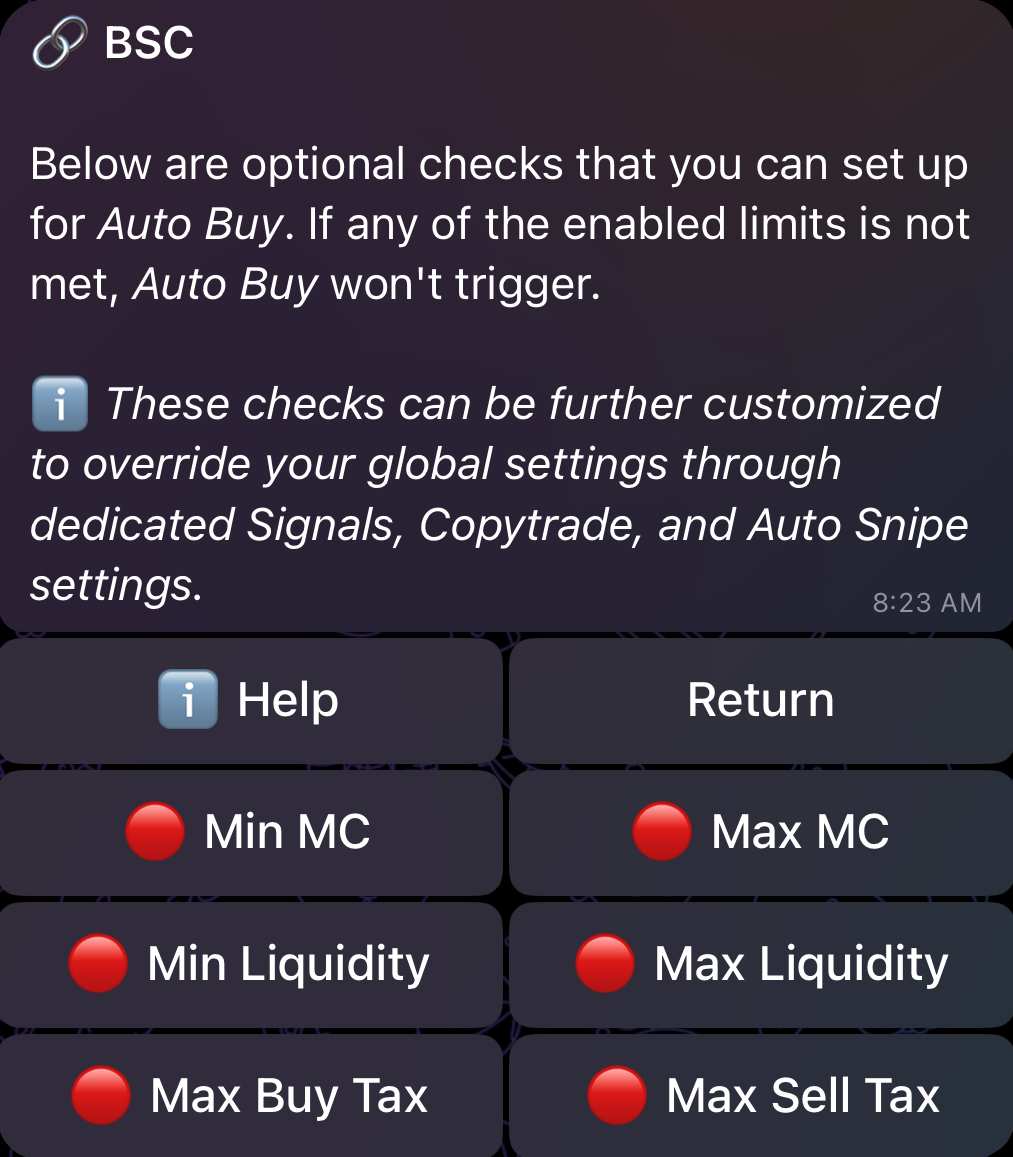
Includes optional checks and limits that you can set up for _Auto Buy_, as shown in the figure below. If any of the enabled limits is not met, _Auto Buy_ won't trigger.
#### Min and Max MC
Choose the minimum and maximum marketcap the bot can auto-buy. **This will not impact manual buys.**
#### Min and Max Liquidity
Choose the minimum and maximum liquidity the bot can auto-buy. **This will not impact manual buys.**
#### Max Buy/Sell Tax
_Available on every EVM-compatible chain_
Choose the maximum buy/sell tax the bot can auto-buy. This is a very important feature, as it can block contracts with high buy/sell tax. **This will not impact manual buys.**
### 🟢 | 🔴 Duplicate Buy
If disabled 🔴, the bot will block auto-buys for any token that you have a positive balance of. This protects you from situations where multiple call channels post the same token, or a copytrade wallet makes multiple purchases of the same project. To turn this protection off, enable ✅ _Dupe Buy_.
This wraps up the _Global Buy Settings._ We can now move on to the _Global Sell Settings_.